Account and access
Sign in, reset your password, and resolve role access.
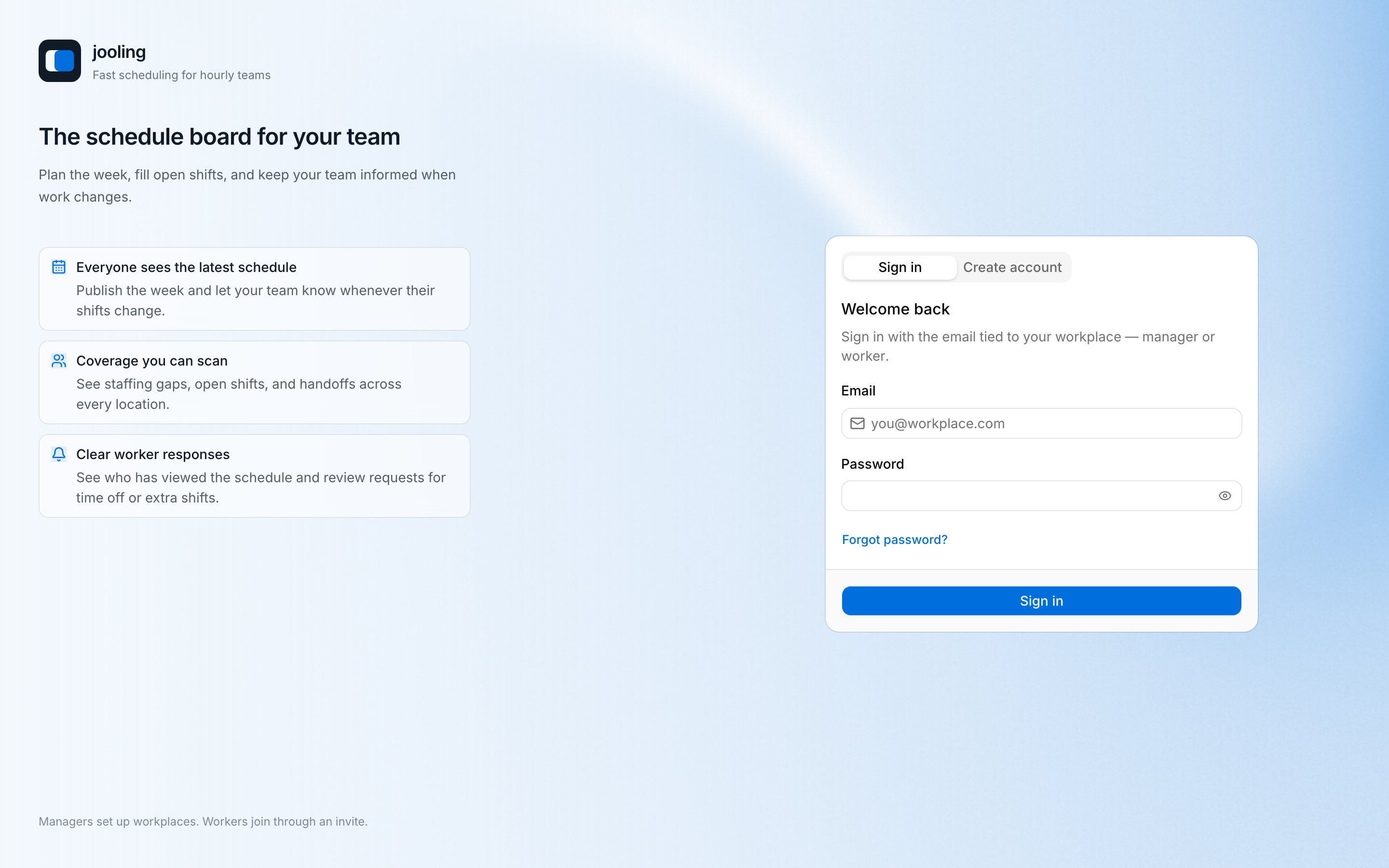
Sign in
Use the email address connected to your jooling account. A Worker invited by email should create or use an account with that same address. If you received an invitation, open its link before trying to set up a new Workplace.
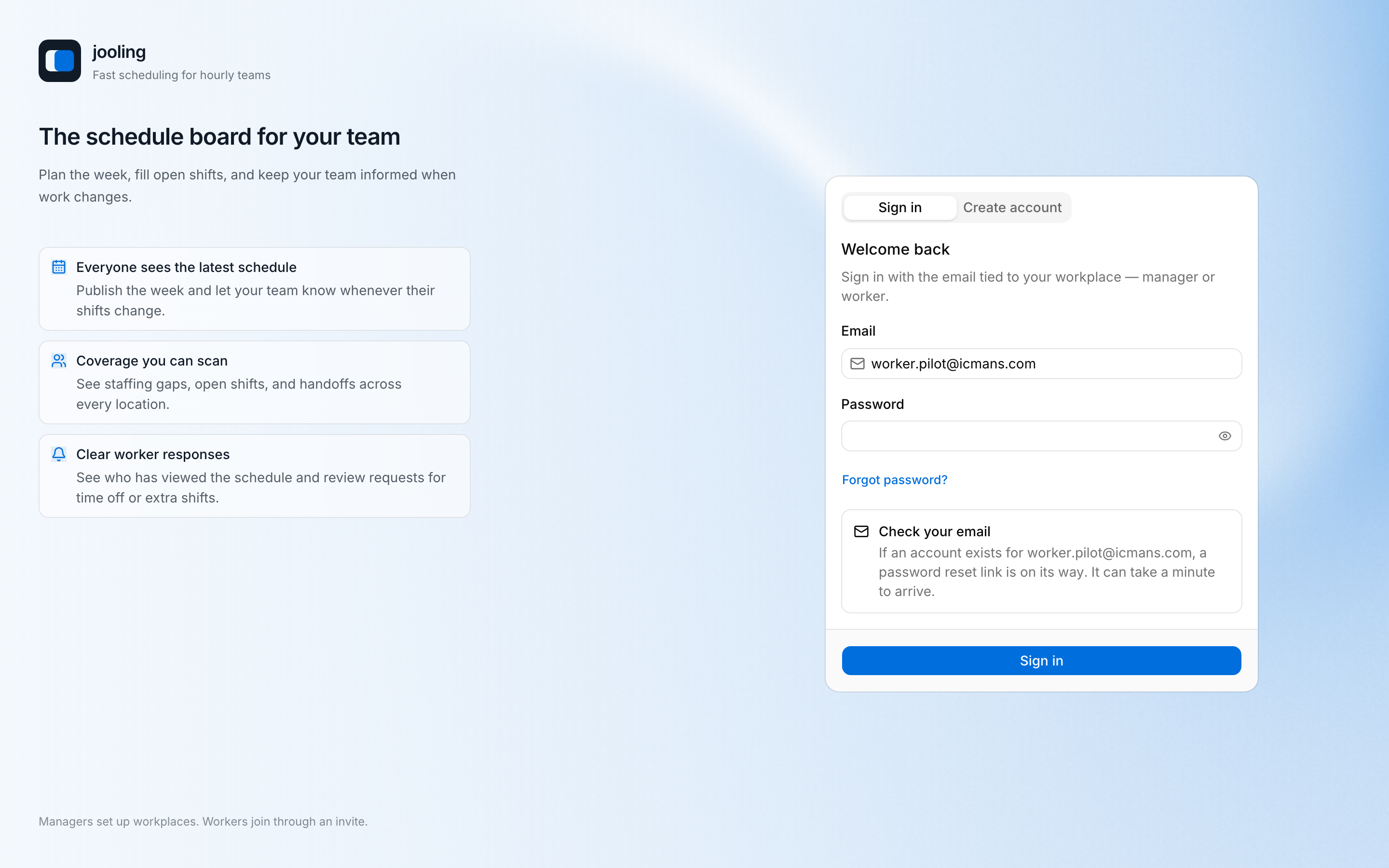
Reset your password
Enter your email on the sign-in screen and select Forgot password?. jooling emails a reset link — open it and choose a new password. If the link has expired, request another reset rather than reusing it.
Multiple Workplaces
People with more than one Employment open one automatically on web; the mobile app can switch between Workplaces under More → Switch workplace. Always confirm the Workplace name before submitting availability, time off, coverage, or time-clock actions.
Manager and Worker access
A Manager sees the management areas permitted by their role and Location scope. A Worker sees worker navigation and their own Employment information. If controls are missing, first confirm the current Workplace and then ask a Manager to review your role, Locations, and Positions.
Deactivated access
A deactivated Employment cannot open Workplace data. Deactivation does not delete published schedule history or create permission to start another Workplace. Contact the Workplace Manager if you believe the Employment was deactivated by mistake.
Invitations
Invitation links are single-use and time-limited. An expired, revoked, accepted, or replaced link will not work. Ask a Manager to resend the invitation and use only the newest email.