Connected services and billing
MCP assistants, API keys, webhooks, and workplace subscriptions.
Integrations
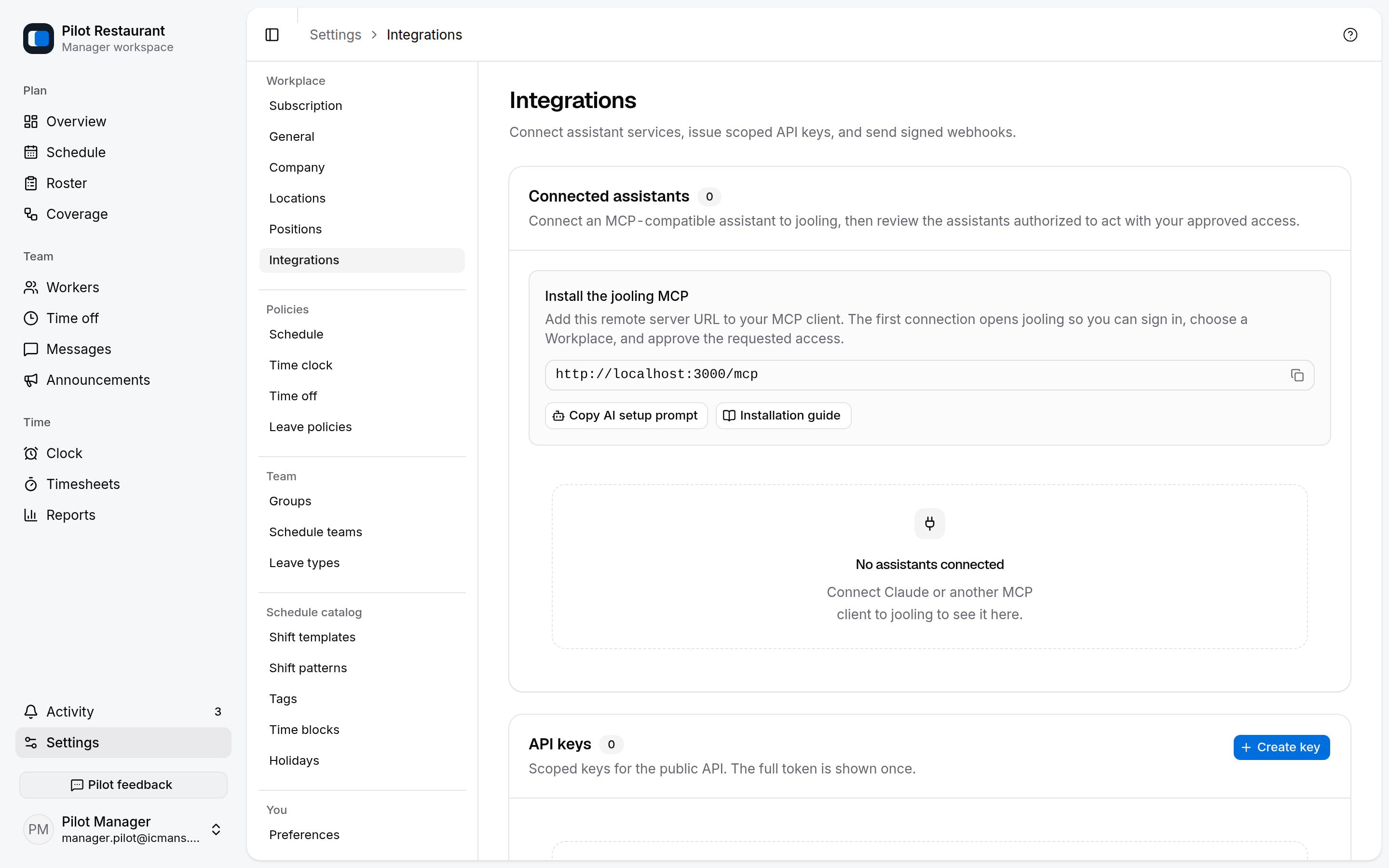
Managers with the appropriate access can open Settings → Integrations to connect their own tooling to the Workplace:
- Connected assistants — install jooling as a remote MCP server, authorize an MCP-compatible assistant with your jooling account, and review its approved access and recent use.
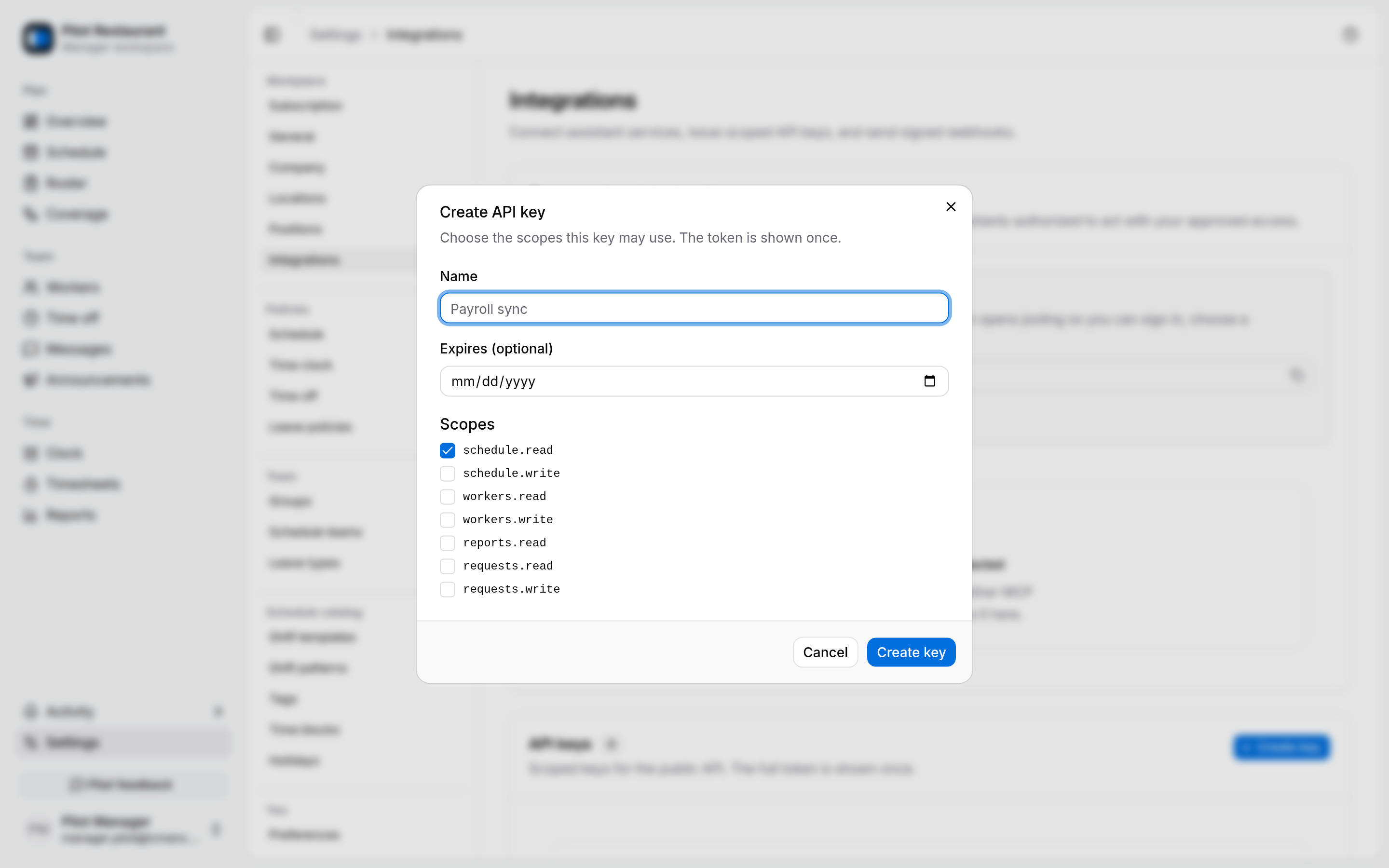
- API keys — scoped keys for reading schedules, workers, reports, and requests, with optional expiry. The key is shown once when created.
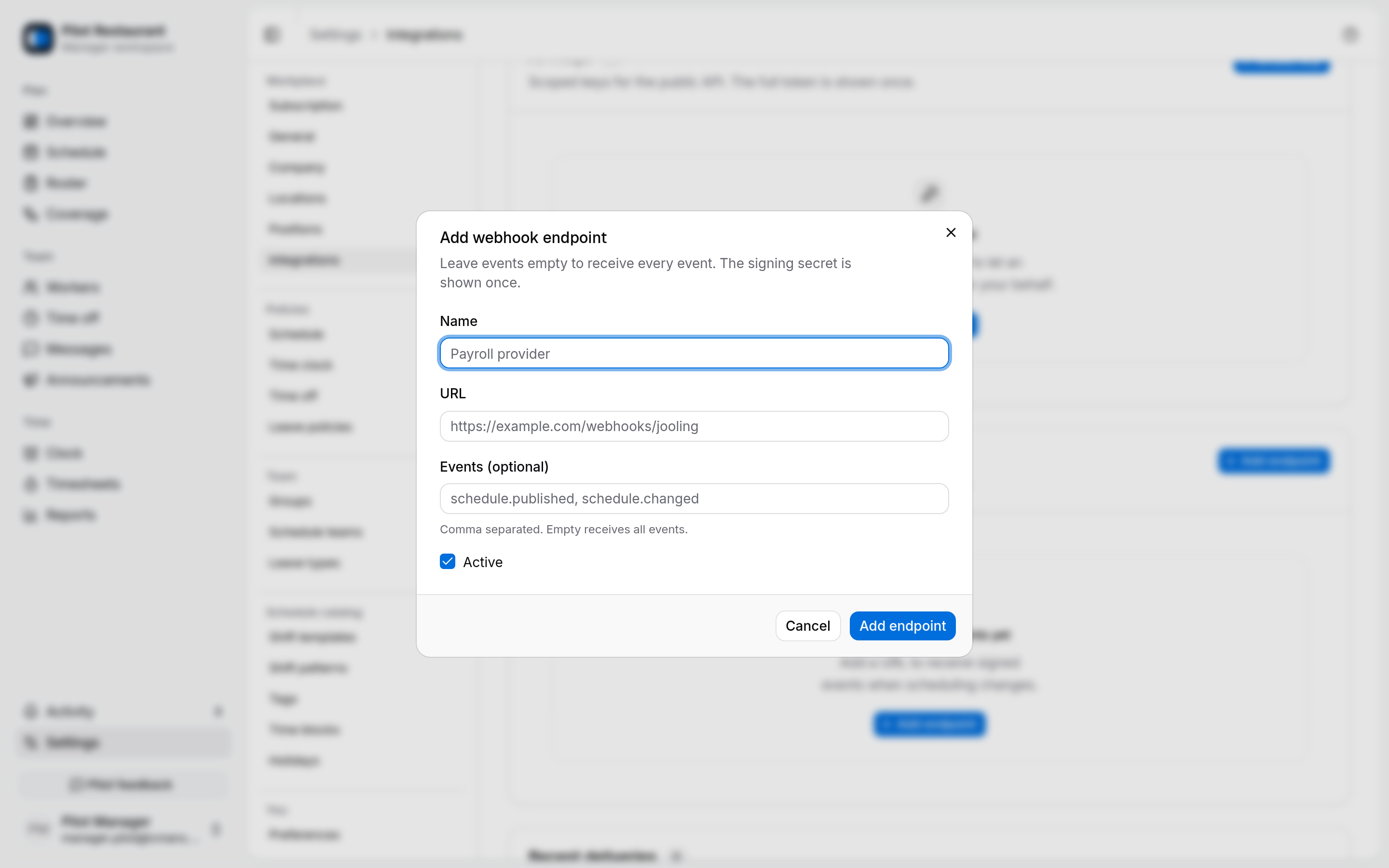
- Webhook endpoints — receive signed events at your own URL, filtered by event type. The signing secret is shown once, and deliveries are logged with their response status.
Install the jooling MCP
The jooling MCP lets an MCP-compatible AI assistant read schedules, drafts, Workers, requests, pending manager actions, and labor reports. With the write permissions you approve, it can invite Workers, edit and publish schedule drafts, decide Time-off Requests and coverage requests, and approve Timesheets. It uses the same permissions, scheduling rules, audit trail, and Worker notifications as the jooling app.
Approving a Shift Pickup publishes a successor Schedule Version and notifies affected Workers, so that action also requires publication authority. Draft edits remain invisible until they are explicitly published.
- Open Settings → Integrations.
- In Connected assistants, copy the MCP server URL shown for the environment you are signed in to. Staging shows the staging API URL; production shows the production API URL.
- To let an AI agent configure its own client, choose Copy AI setup prompt, paste the prompt into the agent, and review the configuration change it proposes. The prompt includes the correct environment URL, preserves existing MCP servers, and instructs the agent to use OAuth rather than requesting an API key.
- To configure the client manually, add a remote Streamable HTTP server named
joolingand paste the URL. If the client accepts JSON configuration, use:
{
  "mcpServers": {
    "jooling": {
      "type": "http",
      "url": "PASTE_THE_URL_FROM_JOOLING"
    }
  }
}- Connect the server. Your browser opens jooling for sign-in and consent.
- Review the requested permissions. Identity permissions required for OAuth sign-in stay selected; you can turn off persistent access and any jooling read or write permission the assistant does not need. Choose Allow access when the selection is correct. The connection then appears under Connected assistants with its approved scopes and last-used time.
To remove an assistant, open its row menu and choose Disconnect. This revokes that assistant's access and refresh tokens for your account and removes its consent grant. You can reconnect it later and approve access again.
Connected clients refresh Jooling's tool catalog automatically when they support MCP tool-list change notifications. After a deployment, clients reconnect and receive the current catalog. New tools covered by permissions you already granted become available automatically; Jooling never silently grants a newly introduced permission, so reconnect and approve that permission when a tool needs one.
Use the URL displayed in the app rather than copying one from another environment. OAuth credentials are audience-bound, so a staging connection cannot be reused against production, or the other way around.
For a local or server-to-server client that cannot complete browser-based OAuth, create a Workplace API key and pass it as a Bearer token to the same /mcp endpoint. Store the key in a secret manager; it is shown only once and acts with every scope you select.
API keys
Create a separate key for each integration, select only the scopes it needs, and set an expiry when practical. Revoke a key immediately if it is exposed or no longer used. API keys can also authenticate the MCP endpoint for clients that support custom request headers.
Webhooks
Add an HTTPS endpoint, choose its event types, and copy the signing secret when it is revealed. Verify every webhook signature before processing the payload. Recent deliveries shows the latest attempts, response codes, retries, and errors so you can diagnose a receiver without exposing its secret.
Only connect a service you recognize, and ask the person responsible for your Workplace technology before changing credentials or endpoints.
Automation recipes
Step-by-step Zapier, Make, and n8n recipes — webhook receivers with signature verification, plus scheduled API polling — live in the Developers section.
What jooling handles for you
| Capability | Where you notice it |
|---|---|
| Email delivery | Invitations and their sent or delivered status in Workers |
| Mobile notifications | Push alerts for schedules and actions |
| Place search | Address suggestions while setting up Locations |
| Subscription billing | Plan and checkout information under Subscription |
jooling does not run payroll or send SMS. Employment documents are saved as titles, links, and notes rather than uploaded files. Daily Sales are entered manually per Location.