Manager guide
Manager journey
The complete weekly and daily operating loop.
Weekly planning
- Review Time-off Requests, Unavailability, Work Preferences, and holidays before you plan.
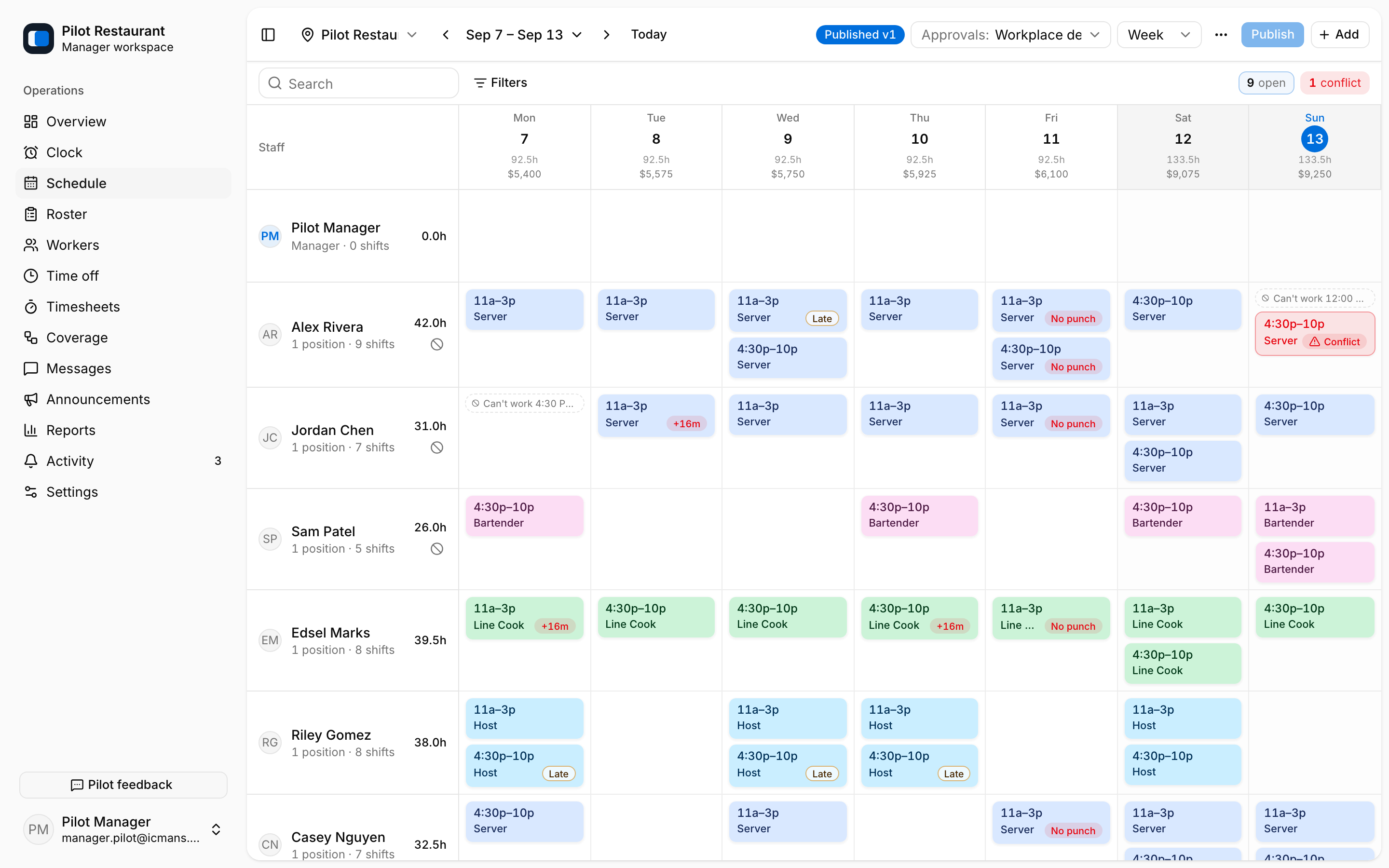
- Open Schedule and choose a Location and workweek.
- Add Shifts with Add, or reuse what already works — Copy last week, a saved Schedule Template, a Shift Pattern, or Auto-assign open shifts.
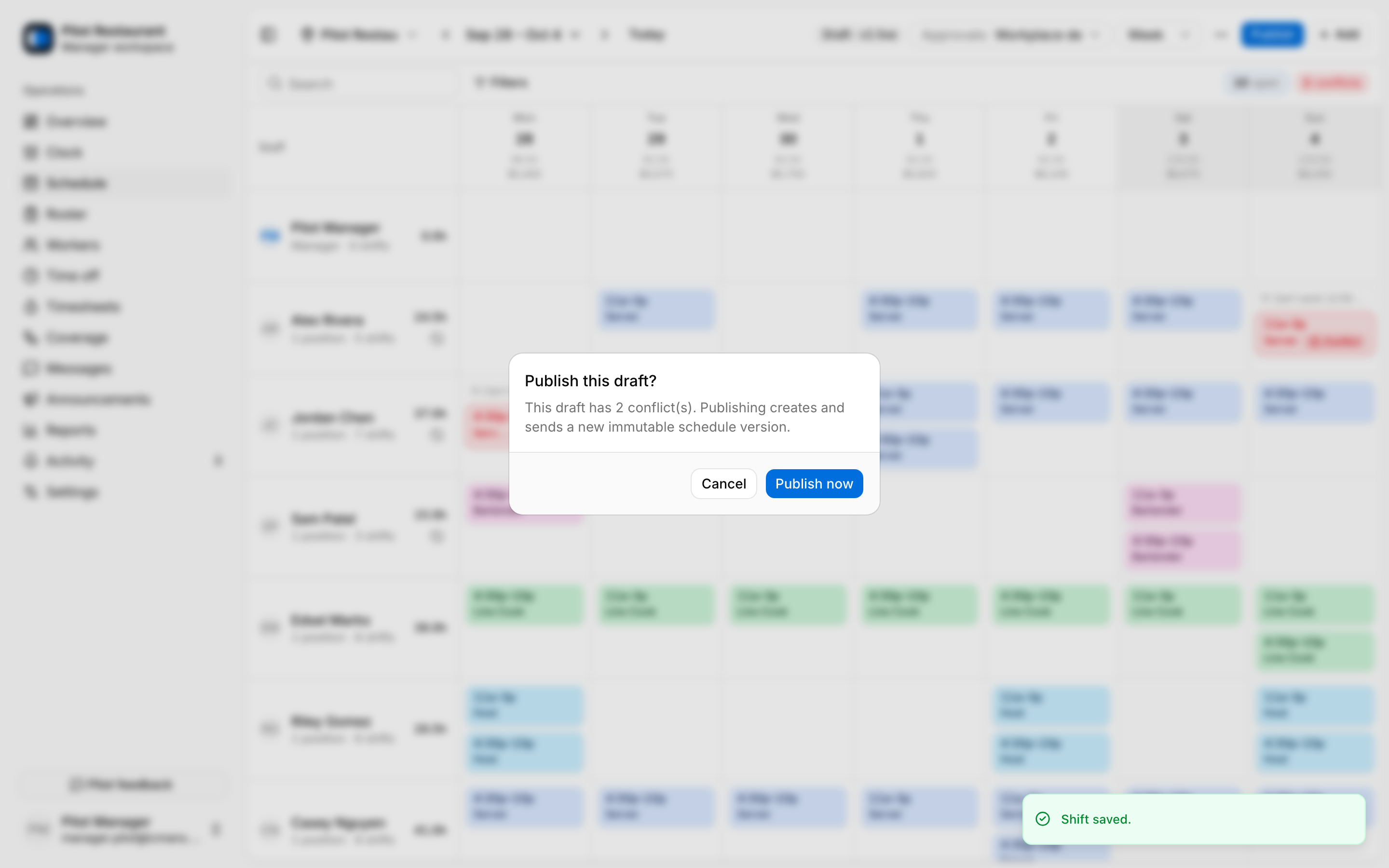
- Check the grid: each day shows scheduled hours and cost, and each worker shows their weekly hours. Conflict chips mark overlaps, approved time off, Unavailability, and access problems.
- Select Publish, review the confirmation, and publish the complete draft.
- Monitor delivery, Acknowledgements, and required Shift Acceptances from Overview and Coverage.
Daily operations
- Overview shows the current staffing picture, open shifts, conflicts, and what needs attention.
- Roster shows today's published shifts across your Locations and supports printing.
- Clock is your own time clock, and Timesheets holds completed Time Entries to approve or decline.
- Coverage holds releases, pickups, and swaps that need a decision.
- Time off holds requests and leave administration.
- Announcements, Messages, Activity, and Reports support communication and review.
Attendance Marks such as Late, No-show, and Sick are added in the shift editor on the Schedule page, under Today operations.
Acknowledgement never means consent to changed work. A release or swap never moves responsibility before final approval and publication.